


The benefits of using Harpenden Online:

Access to your accounts on any
device 24/7
View your transaction history
Check the balance of your account(s)
Request to transfer money between
your Society accounts
Harpenden Online
You can access and manage your savings accounts on the go safely and securely. It is a platform from Harpenden Building Society. Also, many of our savings products are available to open within Harpenden Online, subject to availability and change.
It only takes a few minutes to apply for a new savings account and register for Harpenden Online.
1. Choose an account
You must have a valid email address.
To confirm your identity, we need to verify your name and address. We will do this electronically by using credit reference agencies to search sources of information relating to you (an identity search). This search will not affect your credit rating. You may be asked to provide additional evidence if we are unable to verify your identity electronically.
You must provide a valid UK bank/building society account as your nominated account. It must be in your name either solely or jointly with others. The account that you provide as your nominated account will be the account to which an electronic payment that you make through Harpenden Online will be paid. We will electronically verify your nominated account details. If we cannot verify your nominated account details electronically we may as you to provide further evidence, such as an account statement.
If you wish to apply for a savings product, you must also be ordinarily resident in the UK for tax purposes.
2. About you
We’ll need to collect your personal information about you to open your savings account. It’s important that you input this information correctly and accurately as it is used as part of our electronic identification check. Incorrect information may impact the results of this check. Don’t worry if you make a mistake as you’ll be able to review your details before submitting your application and alter if necessary.
3. Digital signature
Once you have confirmed that all your details are correct, we’ll ask you to digitally sign your application. We do this through our friends at Adobe sign. It is important that this is signed, as without it we will be unable to proceed with your application. On rare occasions, this can take a couple of minutes to load so please do not close this window while it is loading.
4. Electronic identity search
After your application has been digitally signed, we’ll check your identity electronically. This normally takes a minute or two, so please do not close this window while it processing your application. On some occasions, we may need to ask you for further identification. If this happens, one of our friendly team will contact you within two working days and explain the next steps.
5. Your application is complete
After your electronic identification has completed successfully, your application is complete. You will have an onscreen message to explain the next steps, and will have received some emails from us to tell you your User ID and Activation Key. You’ll need these details to access Harpenden Online. We don’t take the initial deposit from your nominated account so we’ll also tell you how to fund your new savings account.
If you are registered and already have access to our Harpenden Online, please log in with your existing credentials.
1. Choose an account
Once you are logged into Harpenden Online you can view which of our savings accounts are available for online applications. These can be found in the ‘Products’ section.
2. About you
As you’re an existing customer, we already have your details recorded. We’ll ask you some product specific questions and how you intend to use your account. It’s important that these are answered accurately, but don’t worry if you make a mistake as you will have the opportunity to review your details before you confirm.
3. Digital signature
Once you have confirmed that all the details are correct, we’ll ask you to digitally sign your application. We do this through our friends at Adobe sign. It is important that this is signed, as without it we will be unable to proceed with your application. On rare occasions, this can take a couple of minutes to load so please do not close this window while it is loading.
4. Electronic identity search
After your application has been digitally signed, we’ll check your identity electronically. This normally takes a minute or two, so please do not close this window while it processing your application. On some occasions, we may need to ask you for further identification. If this happens, one of our friendly team will contact you within two working days and explain the next steps.
5. Your application is complete
After your electronic identification has completed successfully, your application is complete. You will have an onscreen message to explain the next steps. You can then click on the ‘Return to products’ button which will take you back to your Harpenden Online profile. Please note that new accounts can take a few hours to appear on your profile.
Harpenden Online
Frequently Asked Questions
Harpenden Online is the simple and safe way to apply for any accounts with online capability and manage your Harpenden Building Society account(s) conveniently and securely.
You can take advantage of 24/7 access to view your accounts and transaction history on any device.
Anyone, if you are a current member of the society, you can view and manage your savings accounts using Harpenden Online. You just need to login or complete the registration process and you can utilise the benefits; access to your accounts 24/7, check balances, view your transaction history and more.
If you aren’t a current member, you can still open a savings account with us using Harpenden Online from any of our online account(s) available at the time. Once you complete the registration and account opening process, you become a valued member of the society and can view and manage your online account(s) through Harpenden Online once the account is open.
If you send funds into an account electronically, this can take up to 24 hours to show as available in your account via Harpenden Online.
At any time, we may have a selection of Savings products that are available to open online only.
Any online only accounts will not include a passbook for the customer to use, however, if you feel that you need the capability to use a passbook to manage your account, they are available upon request from our Member Services Team or ask within one of our branches.
Also, we may have savings products available that provide the customer with the option to open online, within a branch, or by making an application by post.
You need to check the individual product’s availability and terms and conditions.
Our Savings section on our website, as well as our collateral within branch will clearly define the products available at any time and the channels available to open.
You can register and manage your account via Harpenden Online. Visit our website and click on Harpenden Online to get started, then follow the necessary steps and instructions needed.
Alternatively, if you are viewing any of our savings products individual pages – you can click on Apply Online to begin the Registration process.
Subject to that particular product being available to open online. When you apply online, the Society will check your identity electronically at the time of application. This works for most applicants. But don’t worry, if we can’t do it for you, we should still be able to open an account for you, but we will need to ask for some other documentation.
You can login and manage your account via Harpenden Online. Click on Harpenden Online on our homepage and then select Login to get started, then follow the necessary steps and instructions needed.
You will be able to access your existing savings accounts and check what other accounts are available to open online.
Unfortunately not, you will need an email address to be able to register and use Harpenden Online and open any online savings accounts.
You still have the option to open and manage savings accounts in a branch or by post.
If you’ve forgotten your Harpenden Online password, you can reset it by clicking the ‘Forgotten Details?’ link on the Harpenden Online login page.
You will need to enter your User ID and an account number that you have already registered, and you will then be prompted to enter a new password. You will be sent an email containing an activation key. When you next login (using your new password) you will need to enter the activation key as part of the login process. The activation key you receive is valid for fourteen days.
- Log in to your account.
- Your home page will now be displayed, showing your accounts held with us.
- Click on ‘transfer’ on the account you wish to request a transfer from.
- An account summary will now display for the selected account.
- Select the appropriate destination, as per the terms of your account.
- Click on ‘next’.
- Enter your preferred reference, required amount and date. The date will default to today’s date.
- Click on next.
- The authentication code box will appear, a code will be sent to either your mobile or landline, input the code and click on ‘confirm’.
- A summary of your request will appear, and you will be able to make another transfer if you wish or click on ‘No thanks’ to close the box.
- All pending transfer requests can be viewed from by clicking on ‘transfer’ or ‘details’ next to the appropriate account and then selecting ‘transfers’ from the left strip menu.
- Log in to your account.
- Your home page will now be displayed, showing your accounts held with us.
- Click on ‘details’ on the account you wish to close.
- An account summary will now display for the selected account.
- Then from the strip menu on the left of your screen, select ‘account closure’.
- Select the appropriate destination, as per the terms of your account.
- Click on ‘next’.
- The amount will default to the balance held in the account for closure, we will add the interest at the point of closure, the date will default to today’s date, amend this as required.
- Click on ‘next’.
- The authentication code box will appear. A code will be sent to either your mobile or landline, input the code and click on ‘confirm.
- A summary of your request will appear, you will be able to make another transfer if you wish or click on ‘No thanks’ to close the box.
- Log in to your account.
- Your home page will now be displayed, showing your accounts held with us.
- Click on ‘details’ on the account you wish to cancel your applied notice for.
- An account summary will now display for the selected account.
- Then from the strip menu on the left of your screen, select ‘Transfers’.
- All transfer requests will be displayed here.
- A confirmation pop-up box will appear. If you wish to proceed with cancelling the request, click on ‘confirm’.
- Your request will be removed.
Currently, Harpenden Online is only available for savings accounts and you are not able to view your mortgage accounts.
All financial institutions are required to gather information to verify your identity, prevent fraud and comply with money laundering regulations.
To open any available savings account(s) online – you do not need any identification with you, only an email address is needed.
When you apply online for a personal savings account, the Society will check your identity electronically at the time of application.
This works for most applicants, but don’t worry, if we can’t do it for you, we should still be able to open an account for you, but we will need some additional documentation.
More information on our Identification requirements can be found in the savings section of our website.
Our Harpenden Online Terms and Conditions are available to view during the registration and/or account opening process and at any time when you are logged into your account.
They are also available to view on this Harpenden Online page.
Once an application to open an online savings account is made, an account number will be allocated and you will receive an email from Harpenden Online detailing how to add funds to your new account.
New members applying for an online savings account, will register for Harpenden Online during the account application process, but you will need to wait for receipt of your User ID before transactions on the account can be made.
You can talk to someone about Harpenden Online, via a secure message facility, once logged in to Harpenden Online. This is not a live chat system, but your message will be answered at the earliest opportunity by a member of our Harpenden Building Society Member Services Team.
Alternatively, you can contact our Member Services team on: online_apps@harpendenbs.co.uk or call us on 01582 765411.
After logging in or registering, once you’ve completed the account opening process, there might be a delay in opening your account.
If we can identify you electronically, we might be able to open your account straight away.
If we can’t, there’s a short delay while we check everything out and set up your account.
You might need to send us your application form and relevant ID.
If you apply online, we’ll email you to confirm when your account is open. We’ll let you know your account number and sort code – or you can login to Harpenden Online.
If you’re worried because you’ve not heard from us, call us on 01582 765411 or email us on online_apps@harpendenbs.co.uk
If you completed the online process, then you should receive email confirmation from us about three working days afterwards to confirm your account has been opened. If during the account opening process you click on the back button on screen at any time – this can prevent your account opening being completed.
Yes, you can apply for a new account online, depending on the account type and if the existing account is to be closed or not, you may need to complete a product transfer form. Contact us for more information.
Our online account opening facility is currently set up for personal savings accounts only.
Telephone or email address changes can be made within Harpenden Online. Once you have logged in, click on your name (in the top left hand corner of the screen), then select ‘Contact Details’ and make your amendments.
To notify us of a change of address, you will need to notify us by post or in person at a branch using our ‘Change of details’ form and you will be required to provide documentary evidence of your new address and your signature.
Yes but we do not recommend this. If you use Harpenden Online outside the UK we won’t be liable to you if your use of the Harpenden Online services does not comply with any local laws.
We may block your access to the Harpenden Online services if you try to access them from a country that is subject to sanctions (even if you’re only there for a short period of time).
See more about this in our Harpenden Online Terms and Conditions.
Two factor authentication is an extra level of security to make sure only you can access Harpenden Online to manage your account(s) securely. This is all part of our commitment to protect our customers against fraud.
One time passwords (OTPs) are an authentication method commonly used as part of two-factor identification (2FA) and multi-factor authentication (MFA) that can help balance these needs.
OTPs are unique passwords that are only valid for a single login session for a defined period of time.
OTP is used each time you login and access your online account and each passcode is valid for one login session or transaction.
An OTP is a unique six-digit code sent to you and acts as a secure key to your account, helping to stop anyone but you authorising transactions or making changes.
When you login to your account on Harpenden Online, you will view a landing page where you select your choice of how you want to receive delivery of your OTP. You have two options;
Text message (recommended option)
OR
Telephone call
- If you choose to receive your OTP by Text message
The phone number/s registered on your Harpenden Online account will be presented for selection, to be used as the preferred number. Once requested, you will receive a text message containing your six-digit code. It usually reaches your phone within seconds, although this will depend on your network coverage.
From the moment it is sent you, the code is valid for fifteen minutes, before it expires. After that fifteen minutes you will need to go back to the page to choose your sending preference again and request another OTP.
When you receive the code please enter as prompted on screen. You will then be able to proceed to use Harpenden Online.
- If you choose to receive your OTP by Telephone call
You will receive a call which will provide you with your six-digit code.
From the moment it is sent to you, the code is valid for fifteen minutes, before it expires.
After that fifteen minutes you will need to go back to the page to choose your sending preference again.
When you receive the code please enter as prompted on screen. You will then be able to proceed to use Harpenden Online.
- If you have chosen to receive your code via a Telephone call and only have a landline number registered
It is fine to receive a code to a landline, if you have one assigned to your account. However, we would recommend that the Text message option is chosen as this is the simplest option.
If you receive an unexpected text message or telephone call then please do not login to Harpenden Online but instead contact us immediately on 01582 765411.
For further information please visit the Protection from Common Fraud page on our website for more details on identifying scams.



Latest News


Industry
JUL 31, 2026
Fixed Rate product update
FOR INTERMEDIARY/PROFESSIONAL ADVISORS ONLY. NOT FOR CONSUMER USE.

Latest News
JUL 10, 2026
Harpenden wins ‘Best Local Building Society’ at the 2026 What Mortgage Awards
Harpenden Building Society wins ‘Best Local Building Society’ for the 12th year in a row, as well as being marked ‘Highly Commended’ in the ‘Best Specialist Lender’ and ‘Best Large…
Industry
JUN 09, 2026
Harpenden launch Expat mortgages
FOR INTERMEDIARY/PROFESSIONAL ADVISORS ONLY. NOT FOR CONSUMER USE.

Our Insights
MAY 20, 2026
Jon’s Savings Blog – ISA Changes in 2027
There’s a famous saying: “The best time to plant a tree was 20 years ago. The second‑best time is now.” Well, when it comes to ISAs… the tree is about…

Industry
APR 22, 2026
Member Notice – Staff training 23rd April
Latest News
APR 17, 2026
A Q&A with our CEO Tracie
Here’s a quick Q&A from our CEO Tracie Meadows diving into our new rebrand.
Industry
JAN 22, 2026
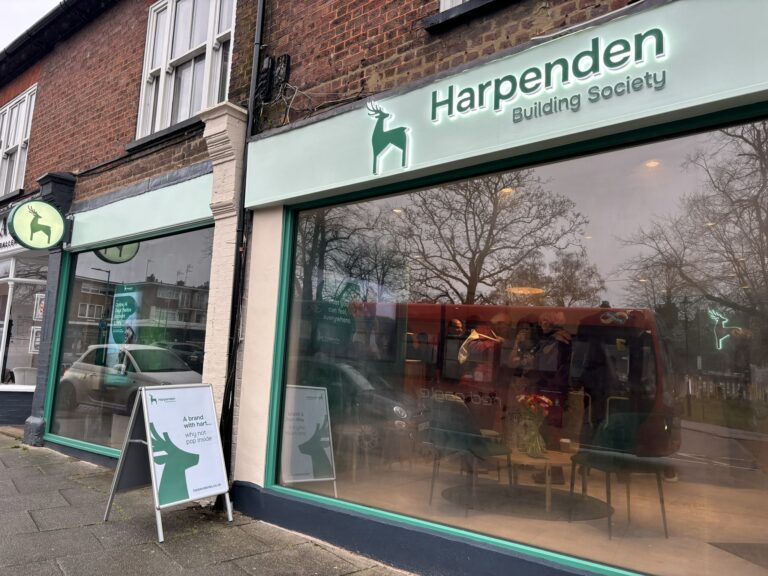
We celebrate our new branch opening in Harpenden
We are thrilled to announce the launch of our brand-new branch, located right on the High Street, in one of the busiest areas of Harpenden. The doors opened on the…